Monday, August 27, 2007

Check PC Health in Vista
If you would like to check your PC’s health:
Open up Control Panel and click on the Performance Information and Tools icon. Than open Advanced tools from the list on the left hand side of the screen. Click on the Generate a system health report option at the bottom of the list. This will provide you with a list of any problems the system may be experiencing and some suggestions on how to correct them.
Tuesday, June 05, 2007
Time and Time Again (Vista)
This one’s interesting. Open up the Date and Time applet in the Control Panel. Flip to the “Additional Clocks” tab. There, you can configure two more clocks from different time zones. They’ll appear in the tooltip when you hover over the Taskbar clock. No additional software (or silly sidebar widgets) necessary. Cool!
Tuesday, April 24, 2007
Remember Your Info! (Firefox)
InFormEnter adds a small, clickable icon next to every input field in a web form, from where you can select the item to be inserted - no typing required. You can configure it to display your frequently used information such as name, email, address and whatever else you want to be available from the form menu.
So, if you can't remember all the bits and pieces of your info, InFormEnter is for you. This small program resides on your own computer (nothing is sent out online, for security purposes). You can add as many items to the program as you wish and this download supports multiple profiles for multiple users. To use, you just click on the new icon next any input field and then click on the item you want inserted. Note that this program works with secure sites (such as financial institutions, for example) so you will wish to use caution if your computer has one user account, but is accessible by others. This add-on is for Firefox and is compatible with Windows (up to and including Vista).
So, if you can't remember all the bits and pieces of your info, InFormEnter is for you. This small program resides on your own computer (nothing is sent out online, for security purposes). You can add as many items to the program as you wish and this download supports multiple profiles for multiple users. To use, you just click on the new icon next any input field and then click on the item you want inserted. Note that this program works with secure sites (such as financial institutions, for example) so you will wish to use caution if your computer has one user account, but is accessible by others. This add-on is for Firefox and is compatible with Windows (up to and including Vista).
Tuesday, April 17, 2007
Windows Media player for Firefox, XP and/or Vista
Good news for those folks that are using Firefox (XP and/or Vista) and wish also to use Windows Media Player. A new and compatible Windows Media Player Plug-in for Firefox has just been released. Now you don't have to use Internet Explorer for all your Windows Media Player content. The new plug-in is available here or by clicking on the title line of this posting. Enjoy!
Monday, April 16, 2007
Feeling "Compatible" with Vista
One concern for Windows XP users is if their favorite software applications will run once they upgrade to Vista.
Luckily, Windows Vista uses a feature called Compatibility Mode which tells the software application that Vista is actually an older OS, specifically Windows 95, 98, Me, NT, 2000, or XP.
Here's how it works:
If your software application won't install, open or work properly, right click on the application's .exe file. Select Properties and then click the Compatibility tab. From there, pick the previous Windows operating system you were on (most likely Windows XP). If you're a system operator, you can set this up as an administrator to make it easier for your staff.

(Information in this tip courtesy of McGraw-Hill)
Here's a little Vista trick you can use in the meantime!
Enable Hidden BootScreen in Windows Vista
The Windows Vista BootScreen is pointless, but Microsoft decided to hide a more visually appealing boot screen that can easily be enabled with very little trouble. I’m not sure why they didn’t make the boot screen better.
- Press Win+R, type msconfig and press Enter.
- If User Account Control prompts you to allow the action, click on Continue.
- In the "System Configuration" window, click on the Boot tab.
- Select your Windows Vista installation and under "Boot options", check "No GUI boot". Press OK.
- In the dialog that appears, check "Don’t show this message again", and then click on Restart.
- Your computer will now reboot, and you will see the Aurora boot screen with text that says "Starting Windows Vista".
Note: You may get a Windows Defender error on the next startup. You can enable the system config utility using the tray icon and this error will go away.
Thursday, March 08, 2007
Daylight Savings Time Changes
Just a reminder of the new Daylight Savings Time dates. Daylight Saving Time now begins at 2.00 AM Sunday, March 11th and your computer clock may not be programmed to reflect this new change. If you are running Vista, your system is already programmed for this. If you are running XP AND if you are completely current with your Windows Updates, the small adjustment program will have already been downloaded as an update and installed to correct your clock on the appropriate day.
If either of these situations is not applicable to your operating system, Microsoft is providing a patch which can be obtained here. For Mac users, Apple is providing a similar patch from the download section of their site.
"The times, they are a-changing!"
If either of these situations is not applicable to your operating system, Microsoft is providing a patch which can be obtained here. For Mac users, Apple is providing a similar patch from the download section of their site.
"The times, they are a-changing!"
Thursday, March 01, 2007
I've been "Bested"
I've just learned the hard way to not entrust your stuff to a certain well-known computer "big box" store. They trashed the whole thing and even after I took it to a "real" tech person, it couldn't be saved. Just a word to the wise. Big name doesn't mean good quality. That's the end of my rant.
Monday, January 22, 2007
Power Point Viewer 2007
If you don't have Microsoft Power Point installed on your computer, you can still view Power Point Presentations. The new Power Point Viewer 2007 has just been released (replacing the 2003 version). Just download and install it and you will be able to view presentations created using all versions of Power Point from Windows 98 up to and including the soon to be released Windows Vista . You can get the new viewer here.
Friday, January 12, 2007
IE7 Not Working At Some Sites?
I love this application. It is a very cool utility that opens an Internet Explorer 7.0 window which is configured to report its identity to websites as being Internet Explorer 6.0 - an excellent way to work with Web sites that are improperly coded to only recognize IE6 and earlier. Just click here to get it.
This is much easier than messing around with the registry, and most importantly, other instances of Internet Explorer 7 will not be affected. It makes testing Web sites so very much easier.
Thursday, January 04, 2007
Photos The Wrong Size? (Windows)
Photo Resizer is a free utility developed for digital-camera owners, Webmasters, or anybody who quickly wants to resize a photo for e-mail or to publish on a Web site. There is no need to open a photo editor or e-mail client. Open the photo in PhotoResizer, resize it, and e-mail it to a friend, colleague, or your office. It also takes the addresses from your e-mail-client's address book. It's an excellent tool for Webmasters. Resize any photo to upload to your Web site. Did I mention that this little item is FREE? Just click on this link!
Back To Top
Back To Top
Tuesday, December 12, 2006
Do The Kids Push Your "Power" Button?
This is for anyone with small children that like to come along and push the power button on the computer, usually right when you're in the middle of something.
Go to "Control Panel","Power", "Options" and click on the "Advanced" tab. In the drop box called "When I press the power button on my computer" set to either "Do nothing" or "Ask me what to do". The first is self-explanatory, and the second brings up the option window when you click "Turn off computer" on the Start menu.
Now you won't have those little fingers coming along while you are in the middle of something and turning the computer off on you and causing you to lose what you're working on.
I haven't come across something similar for the Reset button (if present) other than to disconnect it from the motherboard. Then again if your computer has frozen to the point that you need to reset, flipping the switch on the power supply will accomplish the same thing.
(Thanks to "Stormy 13" - P.C Pitstop for this tip.)
Back To Top
Go to "Control Panel","Power", "Options" and click on the "Advanced" tab. In the drop box called "When I press the power button on my computer" set to either "Do nothing" or "Ask me what to do". The first is self-explanatory, and the second brings up the option window when you click "Turn off computer" on the Start menu.
Now you won't have those little fingers coming along while you are in the middle of something and turning the computer off on you and causing you to lose what you're working on.
I haven't come across something similar for the Reset button (if present) other than to disconnect it from the motherboard. Then again if your computer has frozen to the point that you need to reset, flipping the switch on the power supply will accomplish the same thing.
(Thanks to "Stormy 13" - P.C Pitstop for this tip.)
Back To Top
Tuesday, November 21, 2006
IE7 & Firefox 2.0 both released.
Recently Microsoft released the latest version of it's browser Internet Explorer 7. At about the same time Mozilla released the latest version of it's browser Firefox 2.0. I have used them both and I find that IE7, while looking a little different than it did in it's earlier versions, essentially functions in the same fashion, albeit with a lot of new security advancements and the addition of "tabbed" browsing capabilities. Firefox 2.0 is a stable version with more security features than ever. It looks and functions much like it's previous versions. I believe Firefox 2.0 to be much more secure than IE7, so it will continue, at present, to be my default browser.
I would recommend that both of these browsers should be tried on for size, and with an open mind, before anyone should make any firm decisions as to their browser of choice.
Back To Top
I would recommend that both of these browsers should be tried on for size, and with an open mind, before anyone should make any firm decisions as to their browser of choice.
Back To Top
Tuesday, October 24, 2006
Reclaim Your Inbox - Thunderbird
I have recently begun using Mozilla Thunderbird to access my POP Mail instead of Outlook Express. I like Thunderbird because of it's included Security Applications, it's ease of use, and also the ability to customize to my preferences by adding "extensions", much as one does in the Mozilla Firefox Browser. All settings and mail are easily imported from OE or other mail programs. In addition, Thunderbird can be configured to access mail from most other POP mail sources including, by the way, GMail.
I've been using Thunderbird for a couple of months now and I'm really pleased with the program as a whole. So, as Mozilla says, "Take Back Your Inbox" with Thunderbird. It is, of course, an absolutely FREE download.
Back To Top
I've been using Thunderbird for a couple of months now and I'm really pleased with the program as a whole. So, as Mozilla says, "Take Back Your Inbox" with Thunderbird. It is, of course, an absolutely FREE download.
Back To Top
Monday, October 02, 2006
Fetch Your Product Key!
If you need to re-install Windows, you will need the product key. Most of the time, the place this exists is on the CD jacket Windows came with, and if for some reason you can't find that, it can be quite inconvenient. You can search the registry for it, but there is a program to make this task much easier. It’s called Magical Jelly Bean Keyfinder.
"The Magical Jelly Bean Keyfinder” is a freeware utility that retrieves your Product Key only (CD key) used to install windows from your registry. It has the options to copy the key to clipboard, save it to a text file, or print it for safekeeping. It works on Windows 95, 98, ME, NT4, 2000, XP, Server 2003, Office 97, and Office XP. This version is a quick update to make it work with Windows Server 2003
Go to www.magicaljellybean.com/keyfinder.shtml for more details.
The utility is freeware.
Back To Top
"The Magical Jelly Bean Keyfinder” is a freeware utility that retrieves your Product Key only (CD key) used to install windows from your registry. It has the options to copy the key to clipboard, save it to a text file, or print it for safekeeping. It works on Windows 95, 98, ME, NT4, 2000, XP, Server 2003, Office 97, and Office XP. This version is a quick update to make it work with Windows Server 2003
Go to www.magicaljellybean.com/keyfinder.shtml for more details.
The utility is freeware.
Back To Top
Tuesday, August 22, 2006
See Who Owns The Sites You Visit - CallingID
Are you sure that the site you are entering is the site you think it is? Maybe it's a "phishing" site trying to get your info. CallingID is a program that will install a toolbar at the top your browser page which indicates the site you are visiting, who really does own it and if it's what it seems to be. CallingID works on both Internet Explorer and Firefox. The good news - it's FREE and free is good! Why not give it a try?
Back to Top
Back to Top
Sunday, August 13, 2006
Are you ready for "Vista"?
Windows Vista, the successor to Windows XP, is still being held back so that Microsoft can do some more "tweaking". I have used the Beta version just to see how it functions and have had very few problems. Others, though, report that they have not had the same experience. Many of the programs you may now have will function with Windows Vista, but some will not, at least not yet. Most devices you may now have will work, although some may require downloading new drivers for proper functionality. Microsoft went so far as to have hackers actually try to break the new system and they were successful. Microsoft is again busy altering the program to plug these weaknesses. The final delivery date is still anybody's guess. It is known that Windows Vista will be available as an upgrade to Windows XP and Windows 2000, all others must do a "clean install". When Windows XP was first released, the upgrade proved to be far more problematic than a "clean install" and this may well be the case with the release of Vista. Only time will tell but I would hold off for some time after the release date until most of the bugs are ironed out. Vista also requires a lot of resources to run in its "full" state with all the fancy graphics, etc. It can, however, be run in a simplified mode without these resource heavy items being used, and still operates in a satisfactory manner.
All that being said, how will you know if your machine will even be able to run Windows Vista? Well, Microsoft can at least give you an idea by examining what you already have and what you will need. They are making available the "Windows Vista Upgrade Advisor Beta". When you download this from Microsoft, you can scan your own computer and get a report of what Vista needs in comparison to what you have and with suggestions on what changes have to be made to run Vista and how to make them."Windows Vista Upgrade Advisor Beta" is available for download by clicking on the title of this posting or on the links above. Have fun!
Back to Top
All that being said, how will you know if your machine will even be able to run Windows Vista? Well, Microsoft can at least give you an idea by examining what you already have and what you will need. They are making available the "Windows Vista Upgrade Advisor Beta". When you download this from Microsoft, you can scan your own computer and get a report of what Vista needs in comparison to what you have and with suggestions on what changes have to be made to run Vista and how to make them."Windows Vista Upgrade Advisor Beta" is available for download by clicking on the title of this posting or on the links above. Have fun!
Back to Top
Thursday, June 01, 2006
"SpellBound" broken?
If you have recently updated your Firefox Browser to Version 1.5.0.3 you will notice that your spell checker program "SpellBound" no longer functions properly. Fortunately, there is a solution. There is a version called "SpellBound Development" that will do the job. It can be found here. Uninstall the version that you have installed at present. Now go to the "Update 2006.01.03" paragraph at the top of the page and double click where it says "Spellbound Development Version"
(Friday, June 2, 2006 - Please note that Firefox (Version 1.5.0.4) has just been released and you should upgrade to this version because of it's security improvements. Also note that the same "SpellBound" situation still exists and the "fix" as outlined above works with Version 1.5.0.4 of Firefox also.)
In addition to the above, you will have to download and install a "Dictionary" in the language of your choice (ie: "English-US"). Dictionaries from Mozilla Development can be found here. Simply download and install the dictionary as you would any other Firefox "extension". Note that the dictionary will be installed into the SpellBound extension and therefore will not appear as an individual extension in your extensions list.
Back to Top
(Friday, June 2, 2006 - Please note that Firefox (Version 1.5.0.4) has just been released and you should upgrade to this version because of it's security improvements. Also note that the same "SpellBound" situation still exists and the "fix" as outlined above works with Version 1.5.0.4 of Firefox also.)
In addition to the above, you will have to download and install a "Dictionary" in the language of your choice (ie: "English-US"). Dictionaries from Mozilla Development can be found here. Simply download and install the dictionary as you would any other Firefox "extension". Note that the dictionary will be installed into the SpellBound extension and therefore will not appear as an individual extension in your extensions list.
Back to Top
Saturday, May 20, 2006
Skip the XP Login Page
Windows security updates are undeniably a good thing, but they can be pesky at times. One typical piece of Windows strangeness is that after a couple of the patches your computer will no longer go straight to the desktop at bootup, but will display the login screen. This can be especially annoying since most machines have only one user account on them anyway. Not to worry, this guide will take you through the few steps it takes to have Windows XP skipping that login screen and booting straight to your desktop.
First, you'll need to click "Start", then "Run" and inside of the run dialogue type "control userpasswords2" The screen shown below should appear.
(userpasswords2.jpg)
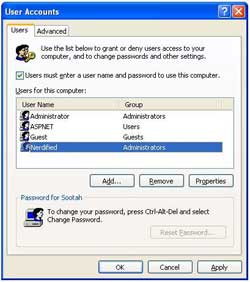
Now, first instinct tells you to uncheck the box that says "Users must enter a user name and password to use this computer" and call it good.
While that is definitely one of the steps, don't do it just yet. You'll want to highlight the default user account first, and then uncheck the box. Windows will autoboot to whatever account is highlighted when you uncheck the box.
Now, after you've unchecked the box, click OK. "Automatically Log On" should be the next dialog box that you see. Don't enter a password and click OK.
That's all! You've told Windows XP what account you want as the default and it will now automatically load that account, and should stay there unless told otherwise. (If you log off, etc) Reboot, and test.
Link: (Thanks to www.crueseinformatique.net for this tip!)
Back to Top
First, you'll need to click "Start", then "Run" and inside of the run dialogue type "control userpasswords2" The screen shown below should appear.
(userpasswords2.jpg)

Now, first instinct tells you to uncheck the box that says "Users must enter a user name and password to use this computer" and call it good.
While that is definitely one of the steps, don't do it just yet. You'll want to highlight the default user account first, and then uncheck the box. Windows will autoboot to whatever account is highlighted when you uncheck the box.
Now, after you've unchecked the box, click OK. "Automatically Log On" should be the next dialog box that you see. Don't enter a password and click OK.
That's all! You've told Windows XP what account you want as the default and it will now automatically load that account, and should stay there unless told otherwise. (If you log off, etc) Reboot, and test.
Link: (Thanks to www.crueseinformatique.net for this tip!)
Back to Top
Wednesday, April 05, 2006
Finding Out Someone's E-Mail Address
If someone sends you an e-mail and all that you see in the 'from' field is their name, open the e-mail message by double clicking on it (in the inbox). Place the pointer over the name in the "From" field and right click. Select "Properties" and their e-mail address will appear.
Back to Top
Back to Top
Subscribe to:
Posts (Atom)