I have recently begun using Mozilla Thunderbird to access my POP Mail instead of Outlook Express. I like Thunderbird because of it's included Security Applications, it's ease of use, and also the ability to customize to my preferences by adding "extensions", much as one does in the Mozilla Firefox Browser. All settings and mail are easily imported from OE or other mail programs. In addition, Thunderbird can be configured to access mail from most other POP mail sources including, by the way, GMail.
I've been using Thunderbird for a couple of months now and I'm really pleased with the program as a whole. So, as Mozilla says, "Take Back Your Inbox" with Thunderbird. It is, of course, an absolutely FREE download.
Back To Top
Tuesday, October 24, 2006

Monday, October 02, 2006
Fetch Your Product Key!
If you need to re-install Windows, you will need the product key. Most of the time, the place this exists is on the CD jacket Windows came with, and if for some reason you can't find that, it can be quite inconvenient. You can search the registry for it, but there is a program to make this task much easier. It’s called Magical Jelly Bean Keyfinder.
"The Magical Jelly Bean Keyfinder” is a freeware utility that retrieves your Product Key only (CD key) used to install windows from your registry. It has the options to copy the key to clipboard, save it to a text file, or print it for safekeeping. It works on Windows 95, 98, ME, NT4, 2000, XP, Server 2003, Office 97, and Office XP. This version is a quick update to make it work with Windows Server 2003
Go to www.magicaljellybean.com/keyfinder.shtml for more details.
The utility is freeware.
Back To Top
"The Magical Jelly Bean Keyfinder” is a freeware utility that retrieves your Product Key only (CD key) used to install windows from your registry. It has the options to copy the key to clipboard, save it to a text file, or print it for safekeeping. It works on Windows 95, 98, ME, NT4, 2000, XP, Server 2003, Office 97, and Office XP. This version is a quick update to make it work with Windows Server 2003
Go to www.magicaljellybean.com/keyfinder.shtml for more details.
The utility is freeware.
Back To Top
Tuesday, August 22, 2006
See Who Owns The Sites You Visit - CallingID
Are you sure that the site you are entering is the site you think it is? Maybe it's a "phishing" site trying to get your info. CallingID is a program that will install a toolbar at the top your browser page which indicates the site you are visiting, who really does own it and if it's what it seems to be. CallingID works on both Internet Explorer and Firefox. The good news - it's FREE and free is good! Why not give it a try?
Back to Top
Back to Top
Sunday, August 13, 2006
Are you ready for "Vista"?
Windows Vista, the successor to Windows XP, is still being held back so that Microsoft can do some more "tweaking". I have used the Beta version just to see how it functions and have had very few problems. Others, though, report that they have not had the same experience. Many of the programs you may now have will function with Windows Vista, but some will not, at least not yet. Most devices you may now have will work, although some may require downloading new drivers for proper functionality. Microsoft went so far as to have hackers actually try to break the new system and they were successful. Microsoft is again busy altering the program to plug these weaknesses. The final delivery date is still anybody's guess. It is known that Windows Vista will be available as an upgrade to Windows XP and Windows 2000, all others must do a "clean install". When Windows XP was first released, the upgrade proved to be far more problematic than a "clean install" and this may well be the case with the release of Vista. Only time will tell but I would hold off for some time after the release date until most of the bugs are ironed out. Vista also requires a lot of resources to run in its "full" state with all the fancy graphics, etc. It can, however, be run in a simplified mode without these resource heavy items being used, and still operates in a satisfactory manner.
All that being said, how will you know if your machine will even be able to run Windows Vista? Well, Microsoft can at least give you an idea by examining what you already have and what you will need. They are making available the "Windows Vista Upgrade Advisor Beta". When you download this from Microsoft, you can scan your own computer and get a report of what Vista needs in comparison to what you have and with suggestions on what changes have to be made to run Vista and how to make them."Windows Vista Upgrade Advisor Beta" is available for download by clicking on the title of this posting or on the links above. Have fun!
Back to Top
All that being said, how will you know if your machine will even be able to run Windows Vista? Well, Microsoft can at least give you an idea by examining what you already have and what you will need. They are making available the "Windows Vista Upgrade Advisor Beta". When you download this from Microsoft, you can scan your own computer and get a report of what Vista needs in comparison to what you have and with suggestions on what changes have to be made to run Vista and how to make them."Windows Vista Upgrade Advisor Beta" is available for download by clicking on the title of this posting or on the links above. Have fun!
Back to Top
Thursday, June 01, 2006
"SpellBound" broken?
If you have recently updated your Firefox Browser to Version 1.5.0.3 you will notice that your spell checker program "SpellBound" no longer functions properly. Fortunately, there is a solution. There is a version called "SpellBound Development" that will do the job. It can be found here. Uninstall the version that you have installed at present. Now go to the "Update 2006.01.03" paragraph at the top of the page and double click where it says "Spellbound Development Version"
(Friday, June 2, 2006 - Please note that Firefox (Version 1.5.0.4) has just been released and you should upgrade to this version because of it's security improvements. Also note that the same "SpellBound" situation still exists and the "fix" as outlined above works with Version 1.5.0.4 of Firefox also.)
In addition to the above, you will have to download and install a "Dictionary" in the language of your choice (ie: "English-US"). Dictionaries from Mozilla Development can be found here. Simply download and install the dictionary as you would any other Firefox "extension". Note that the dictionary will be installed into the SpellBound extension and therefore will not appear as an individual extension in your extensions list.
Back to Top
(Friday, June 2, 2006 - Please note that Firefox (Version 1.5.0.4) has just been released and you should upgrade to this version because of it's security improvements. Also note that the same "SpellBound" situation still exists and the "fix" as outlined above works with Version 1.5.0.4 of Firefox also.)
In addition to the above, you will have to download and install a "Dictionary" in the language of your choice (ie: "English-US"). Dictionaries from Mozilla Development can be found here. Simply download and install the dictionary as you would any other Firefox "extension". Note that the dictionary will be installed into the SpellBound extension and therefore will not appear as an individual extension in your extensions list.
Back to Top
Saturday, May 20, 2006
Skip the XP Login Page
Windows security updates are undeniably a good thing, but they can be pesky at times. One typical piece of Windows strangeness is that after a couple of the patches your computer will no longer go straight to the desktop at bootup, but will display the login screen. This can be especially annoying since most machines have only one user account on them anyway. Not to worry, this guide will take you through the few steps it takes to have Windows XP skipping that login screen and booting straight to your desktop.
First, you'll need to click "Start", then "Run" and inside of the run dialogue type "control userpasswords2" The screen shown below should appear.
(userpasswords2.jpg)
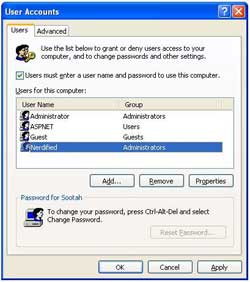
Now, first instinct tells you to uncheck the box that says "Users must enter a user name and password to use this computer" and call it good.
While that is definitely one of the steps, don't do it just yet. You'll want to highlight the default user account first, and then uncheck the box. Windows will autoboot to whatever account is highlighted when you uncheck the box.
Now, after you've unchecked the box, click OK. "Automatically Log On" should be the next dialog box that you see. Don't enter a password and click OK.
That's all! You've told Windows XP what account you want as the default and it will now automatically load that account, and should stay there unless told otherwise. (If you log off, etc) Reboot, and test.
Link: (Thanks to www.crueseinformatique.net for this tip!)
Back to Top
First, you'll need to click "Start", then "Run" and inside of the run dialogue type "control userpasswords2" The screen shown below should appear.
(userpasswords2.jpg)

Now, first instinct tells you to uncheck the box that says "Users must enter a user name and password to use this computer" and call it good.
While that is definitely one of the steps, don't do it just yet. You'll want to highlight the default user account first, and then uncheck the box. Windows will autoboot to whatever account is highlighted when you uncheck the box.
Now, after you've unchecked the box, click OK. "Automatically Log On" should be the next dialog box that you see. Don't enter a password and click OK.
That's all! You've told Windows XP what account you want as the default and it will now automatically load that account, and should stay there unless told otherwise. (If you log off, etc) Reboot, and test.
Link: (Thanks to www.crueseinformatique.net for this tip!)
Back to Top
Wednesday, April 05, 2006
Finding Out Someone's E-Mail Address
If someone sends you an e-mail and all that you see in the 'from' field is their name, open the e-mail message by double clicking on it (in the inbox). Place the pointer over the name in the "From" field and right click. Select "Properties" and their e-mail address will appear.
Back to Top
Back to Top
Friday, March 31, 2006
Boring Logon - Try Logon Studio
I hate with a passion the windows logon screen. It's so dull and boring. Logon Studio is a fast fun and easy way to change the way you log onto your windows machine. With Logon Studio you can customize the look and even the text of your log on screen.
Of course it is FREE (Windows Only)
Download Logon Studio http://www.stardock.com/products/logonstudio/
Download pre-made skins here: http://www.wincustomize.com/Skins.aspx?LibID=26
Back to Top
Of course it is FREE (Windows Only)
Download Logon Studio http://www.stardock.com/products/logonstudio/
Download pre-made skins here: http://www.wincustomize.com/Skins.aspx?LibID=26
Back to Top
Tuesday, March 07, 2006
Want to "Excel"?
If you receive documents compiled using Microsoft Excel but you don't have Excel installed on your computer, you can still read Excel documents. All you need is the "Excel Viewer 2003" from Microsoft which can be downloaded and installed on your computer. Simply click here.
Note that you will not be able to alter the document using the viewer but you will be able to view it. Handy, eh?
Back to Top
Note that you will not be able to alter the document using the viewer but you will be able to view it. Handy, eh?
Back to Top
Thursday, February 16, 2006
Recover Your Autoplay!
Once upon a time, Windows anticipated my every move, popping up a wizard when I plugged in my camera, or launching my media player when I inserted a music CD. Then one day (after I installed a new program, or clicked--without reading carefully--a pop-up dialog box), Windows forgot what to do with my music, photos, and other media files.
Right-clicking the drive or device in Explorer and choosing Properties will lead you to an Autoplay or Events tab where you can reestablish which program should do what when you plug in, but Autoplay settings sometimes remain stubbornly broken.
Microsoft's Autoplay Repair Wizard fixes the botched settings. Although the Microsoft download page asks you to validate your copy of Windows before downloading the wizard (how annoying!), you can, perversely enough, opt out of validation and still download the fix. Now, isn't that better?
Back to Top
Right-clicking the drive or device in Explorer and choosing Properties will lead you to an Autoplay or Events tab where you can reestablish which program should do what when you plug in, but Autoplay settings sometimes remain stubbornly broken.
Microsoft's
Back to Top
Wednesday, February 01, 2006
Surf With Safety!
I recently came across another weapon in the war against spyware that's so useful I can't help myself from telling you about it.
In this era of drive-by installs and unannounced browser hijacks, surfing the Web can seem like tiptoeing across a minefield: one wrong step, and you've got serious problems. For the past couple of years, I have been hoping someone would develop a tool that tests Web sites for potential safety issues, so when I found a Firefox plug-in called SiteAdvisor, I was excited. Even better, once I started testing it this tiny add-on actually exceeded my expectations, which is rare.
The short story on SiteAdvisor is that it gives you the dirt on more than a million Web sites. Its test bots constantly check sites to see whether they send unsolicited e-mail, bury users under a blanket of pop-ups, and--perhaps most importantly--contain software that could compromise your privacy. Whenever you visit a URL, SiteAdvisor's browser icon flashes one of three colors: green (safe), yellow (caution), or red (extreme caution). Then, with a couple clicks, you can head to SiteAdvisor's home page for more detailed information. According to the company, about 90 percent of the sites tested so far have scored a green rating, whereas only 5 percent haved earned the red flag for bad behavior. My favorite part about the plug-in is that it rates sites directly from search engines such as Yahoo and Google, which reduces your chances of falling victim to a drive-by install. By the way, did I say that it's FREE?
(Used with permission from CNET Networks, Inc., Copyright 2006. All rights reserved.)
Addendum: SiteAdvisor is also available for Internet Explorer. You can find it by clicking here: (SiteAdvisor for Internet Explorer)
Back to Top
In this era of drive-by installs and unannounced browser hijacks, surfing the Web can seem like tiptoeing across a minefield: one wrong step, and you've got serious problems. For the past couple of years, I have been hoping someone would develop a tool that tests Web sites for potential safety issues, so when I found a Firefox plug-in called SiteAdvisor, I was excited. Even better, once I started testing it this tiny add-on actually exceeded my expectations, which is rare.
The short story on SiteAdvisor is that it gives you the dirt on more than a million Web sites. Its test bots constantly check sites to see whether they send unsolicited e-mail, bury users under a blanket of pop-ups, and--perhaps most importantly--contain software that could compromise your privacy. Whenever you visit a URL, SiteAdvisor's browser icon flashes one of three colors: green (safe), yellow (caution), or red (extreme caution). Then, with a couple clicks, you can head to SiteAdvisor's home page for more detailed information. According to the company, about 90 percent of the sites tested so far have scored a green rating, whereas only 5 percent haved earned the red flag for bad behavior. My favorite part about the plug-in is that it rates sites directly from search engines such as Yahoo and Google, which reduces your chances of falling victim to a drive-by install. By the way, did I say that it's FREE?
(Used with permission from CNET Networks, Inc., Copyright 2006. All rights reserved.)
Addendum: SiteAdvisor is also available for Internet Explorer. You can find it by clicking here: (SiteAdvisor for Internet Explorer)
Back to Top
Tuesday, January 24, 2006
What Does That EULA Really Say?
End User License Agreements (EULa's) are really the bane of computer owners. Before you can install that software, you have to agree to the darn license agreement. Most EULA's are long, involved and couched in legalese and you could be agreeing to almost anything. Many a spyware program has been downloaded because the EULA was either not read or not understood by a frustrated computer owner. Javacool Software has come through again! I came across this FREE (for personal use) program called EULAlyzer that will skim through those troublesome EULA's looking for suspect words and phrases. Now you can have some idea just what the darn EULA really does say and decide whether you want to agree to it or not.
Back to Top
Back to Top
Monday, January 23, 2006
Can't Find Your Cursor?
Have you ever had trouble locating the cursor on your screen? Whether it’s jammed in a corner or camouflaged in a cloud on your desktop, this shortcut is a clever little feature in Windows XP.
1. Open the Start menu and click "Control Panel".
2. Choose "Printers and other hardware" and click "Mouse".
3. Go to the "Pointer Options" tab and check the box that says "Show location of pointer when I press the CTRL key".
4. Click OK to exit.
Now, if you ever lose your cursor, just tap the Ctrl key to find it again. Isn't that the neatest thing you ever heard?
Back to Top
1. Open the Start menu and click "Control Panel".
2. Choose "Printers and other hardware" and click "Mouse".
3. Go to the "Pointer Options" tab and check the box that says "Show location of pointer when I press the CTRL key".
4. Click OK to exit.
Now, if you ever lose your cursor, just tap the Ctrl key to find it again. Isn't that the neatest thing you ever heard?
Back to Top
Wednesday, January 04, 2006
Bad Time With Spyware? - Try Spyware Blaster
There's lots of troublesome spyware out there just waiting to spy on your every move. Why not handle it with "Spyware Blaster" from Javacool Software. Spyware Blaster is FREE (and free is good). You can get Spyware Blaster by clicking on the title of this posting or by clicking here.
Back to Top
Back to Top
Friday, December 09, 2005
Windows XP - On-screen Keyboard
Here's another XP secret revealed. Windows XP has an on-screen keyboard. You might need this if you can't get to your own keyboard. Here's how you do this: Open "My Computer" and browse to "C:/Windows/ System32" then double-click "osk.exe". You can use the keyboard using simple point and click commands. Handy thing to know, don't you think!
Back to Top
Back to Top
Wednesday, November 30, 2005
Firefox Update, the "Googlebar" & "Spellbound"
For those of you who are using the Firefox browser, be advised that Firefox has been updated to Version 1.5. If you have been using the "Googlebar" extension from Firefox, you will find that it is no longer compatible with this version, so go to "Tools", "Extensions", scroll down to "Googlebar", right click on this item and select "Uninstall". While Firefox has not yet made a compatible "Googlebar" extension for Version 1.5, the good news is that Google has. The version from Google installs right into the Firefox browser and functions correctly. Be sure to read all the installation instructions so you know just what you're getting. The Google version can be found at the link below:
http://toolbar.google.com/firefox/
In addition, you may find that your "SpellBound" spelling checker has stopped functioning. This is because the "dictionary libraries" have not transferred correctly to Firefox Version 1.5. The easiest solution is to uninstall your present "SpellBound" program (go to "Tools", "Extensions", scroll down to "SpellBound", right click on this item and select "Uninstall"). Now, you can re-install "SpellBound" and the "libraries". You can find them both at the link below:
http://spellbound.sourceforge.net/.
Addendum:
If you still have compatibility problems the following program can solve them, but caution should be observed. This program is actually a program developers tool and not for the faint of heart. If you decide to use this, simply download it and install it into your Firefox Extensions just as if it was a regular extension but do nothing else. Just the installation of the program will present you with an option to use the tool to automatically overcome any incompatibilities. Remember, use caution with this program! It can be obtained by utilizing the link below:
http://users.blueprintit.co.uk/~dave/web/firefox/buildid/nightly.html
Back to Top
http://toolbar.google.com/firefox/
In addition, you may find that your "SpellBound" spelling checker has stopped functioning. This is because the "dictionary libraries" have not transferred correctly to Firefox Version 1.5. The easiest solution is to uninstall your present "SpellBound" program (go to "Tools", "Extensions", scroll down to "SpellBound", right click on this item and select "Uninstall"). Now, you can re-install "SpellBound" and the "libraries". You can find them both at the link below:
http://spellbound.sourceforge.net/.
Addendum:
If you still have compatibility problems the following program can solve them, but caution should be observed. This program is actually a program developers tool and not for the faint of heart. If you decide to use this, simply download it and install it into your Firefox Extensions just as if it was a regular extension but do nothing else. Just the installation of the program will present you with an option to use the tool to automatically overcome any incompatibilities. Remember, use caution with this program! It can be obtained by utilizing the link below:
http://users.blueprintit.co.uk/~dave/web/firefox/buildid/nightly.html
Back to Top
Tuesday, November 08, 2005
Turn Off File and Print Sharing!
The file and printer sharing setting in Windows could leave you wide open to invasion from the Internet. So, turn it off, already!
In Windows 98 and ME, click Start, Settings and Control Panel. Then:
--Double click the Network icon
--Select Configuration and click the File and Print Sharing button
--Deselect file sharing and print sharing
--Click OK & OK. Restart the computer.
In Windows XP, double click the Network icon as before. Then:
--Right-click Local Area Connection
--Click Properties and the General tab
--Clear File and Printer Sharing for Microsoft Networks
--Click OK. Close the Network Connections window. Restart the computer.
If you must use file and printer sharing, be sure you have a firewall. I recommend Zone Alarm. If possible, disable file and printer sharing until you need it.
Back to Top
In Windows 98 and ME, click Start, Settings and Control Panel. Then:
--Double click the Network icon
--Select Configuration and click the File and Print Sharing button
--Deselect file sharing and print sharing
--Click OK & OK. Restart the computer.
In Windows XP, double click the Network icon as before. Then:
--Right-click Local Area Connection
--Click Properties and the General tab
--Clear File and Printer Sharing for Microsoft Networks
--Click OK. Close the Network Connections window. Restart the computer.
If you must use file and printer sharing, be sure you have a firewall. I recommend Zone Alarm. If possible, disable file and printer sharing until you need it.
Back to Top
Tuesday, October 18, 2005
Maintain Perfect Time!
Don't be surprised if you occasionally end up late for a meeting when you rely on your PC's clock. Most computers do a poor job of keeping time, losing as much as a couple of seconds a day. That may not seem like a big deal, but let it go on for a few months and it's more than enough to put your PC's clock several minutes on the slow side.
Windows XP users can solve this problem easily. Simply right-click the clock in the corner of the taskbar, click Adjust Date/Time, select the Internet Time tab, and check the Automatically synchronize with an Internet time server box. When your computer connects to the Net, it will periodically check in with an atomic clock and make sure that you have the correct time.
Thanks to PC World!(link)Back to Top
Friday, October 14, 2005
Firewall Protection?
Anytime you're connected to the Internet your PC is exposed to the whole world. If it is not protected properly, crackers can detect the PC, probe it for vulnerabilities, exploit them to gain access to your machine and either openly wreak havoc by stealing and/or deleting data, or secretly plant malicious code that turns your PC into a zombie to be part of an attack on somebody's server or network. This issue is especially important for PCs with a highspeed connection to the Internet via DSL or cable modems because they are prime targets for crackers.
To find out how vulnerable your machine is, visit this excellent web site that offers some online tools to test your machine's security. Open your browser, go to http://grc.com/default.htm and click on "Shield's UP!". Read the information on this page, then click "Test My Shields!" and "Probe My Ports!". These tests check for obvious vulnerabilities of your PC and you might be surprised at the results. Chances are you have a number of open and/or visible ports that can make your machine a target for crackers.
You can protect your machine by closing these security holes with the help of a program called a firewall. Firewall software monitors your Internet connection and filters all traffic to keep undesired traffic out and only allows legitimate traffic through. There are a number of software firewalls available on the Internet and in stores. The one we recommend is ZoneLab's Zone Alarm. You can download a free version (for personal use) from ZoneLab's web site at http:///www.zonelabs.com. Note that you should only have one firewall program installed and operational at a time to avoid conflicts between them.
After installing Zone Alarm, go back and perform another Shields UP! Test and Port Probe. You should see a big difference and find that all tested ports are now closed and in stealth mode.
Since Steve Gibson did an excellent job at explaining firewalls, the tests, and the dangers, and the topic is beyond the scope of this article, we'll refrain from going more into detail at this point, but you are encouraged to read more about this fascinating topic at http://grc.com/su-explain.htm.
Back to Top
To find out how vulnerable your machine is, visit this excellent web site that offers some online tools to test your machine's security. Open your browser, go to http://grc.com/default.htm and click on "Shield's UP!". Read the information on this page, then click "Test My Shields!" and "Probe My Ports!". These tests check for obvious vulnerabilities of your PC and you might be surprised at the results. Chances are you have a number of open and/or visible ports that can make your machine a target for crackers.
You can protect your machine by closing these security holes with the help of a program called a firewall. Firewall software monitors your Internet connection and filters all traffic to keep undesired traffic out and only allows legitimate traffic through. There are a number of software firewalls available on the Internet and in stores. The one we recommend is ZoneLab's Zone Alarm. You can download a free version (for personal use) from ZoneLab's web site at http:///www.zonelabs.com. Note that you should only have one firewall program installed and operational at a time to avoid conflicts between them.
After installing Zone Alarm, go back and perform another Shields UP! Test and Port Probe. You should see a big difference and find that all tested ports are now closed and in stealth mode.
Since Steve Gibson did an excellent job at explaining firewalls, the tests, and the dangers, and the topic is beyond the scope of this article, we'll refrain from going more into detail at this point, but you are encouraged to read more about this fascinating topic at http://grc.com/su-explain.htm.
Back to Top
Wednesday, September 28, 2005
WinMX failure?
For those of you who may be using "WinMX" to download music, you may have noticed that this program ceased to function a few days ago when the WinMX servers were changed due to an RIAA regulation. This means that the program, as you currently have it, cannot connect to music sources. There are two possible solutions: 1 - Uninstall WinMX and use another program OR 2 - click on the link below and download and install the "fix" (be sure to use the "fix" that matches your operating system (windows 98, Windows ME. Windows XP, etc.). You may have to reboot for the installed fix to take effect but you will find that WinMX works again perfectly.
http://www.winmxunlimited.net/Peer-Cache-Patch-1.1.exe
An alternative patch for WinMx is available here if the first one won't work for you:
http://winmxgroup.com/
Back to Top
http://www.winmxunlimited.net/Peer-Cache-Patch-1.1.exe
An alternative patch for WinMx is available here if the first one won't work for you:
http://winmxgroup.com/
Back to Top
Subscribe to:
Posts (Atom)